Skip to content
KING TVKING TV
  • Home
  • Plans
  • Setup Guides
  • Reseller
  • Restream
  • Contact
  • Login
  • START FREE TRIAL
DREAMLINK IPTV SETUP GUIDE

Set Up KING TV On A Dreamlink Box

Use this guide for supported Dreamlink T1, T2 and similar portal-based receivers using DreamOnline or DOL2. Keep the KING TV activation email open and enter the portal URL exactly as supplied.

Start Dreamlink Setup Contact Support
Large readable steps
Portal and MAC guidance
Support available 24/7
PORTAL RECEIVER
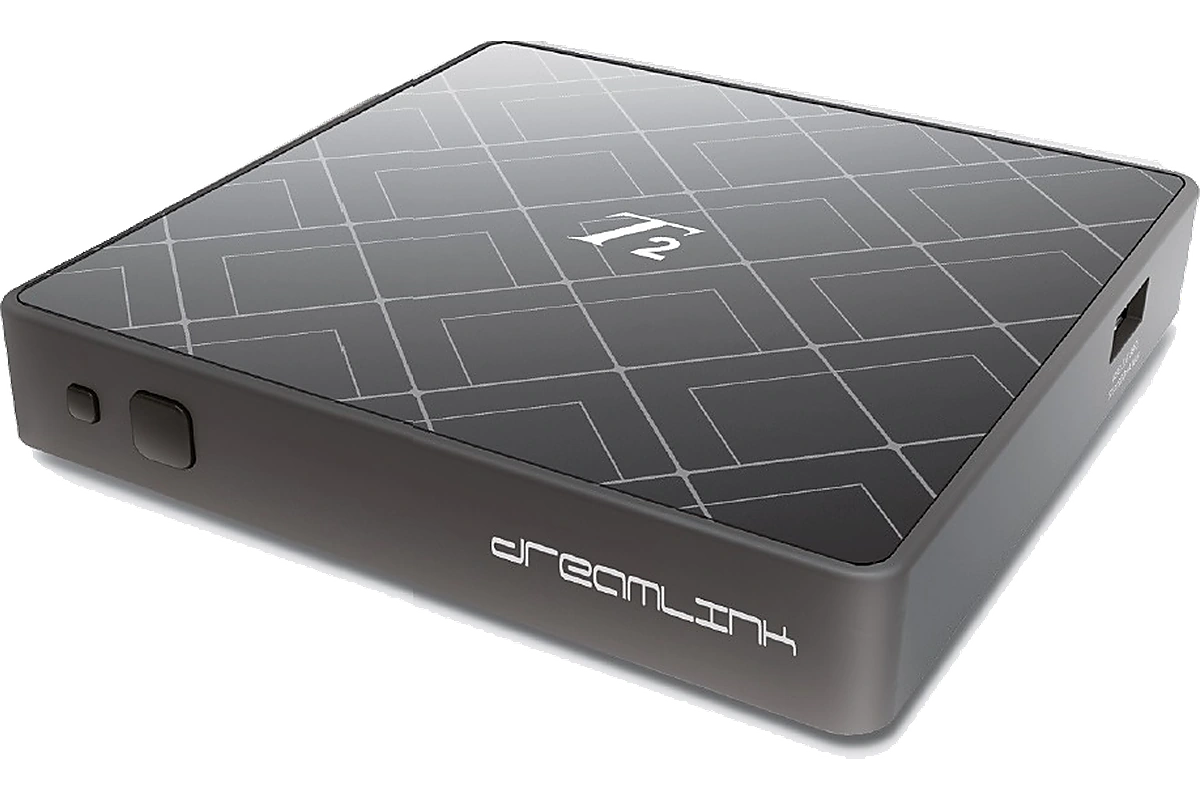
Dreamlink IPTV receiver for KING TV setup
You will normally need two details
The correct Dreamlink MAC address or device ID and the exact KING TV portal URL from your activation email.
BEFORE YOU OPEN DOL2

Keep These Four Things Ready

Most Dreamlink setup problems come from using the wrong device address, entering an incomplete portal URL or mixing portal and Xtream Codes login methods.

1

Your Dreamlink Box

Connect the receiver to the television and home network. Ethernet is preferred when practical.

2

Your Remote Control

Make sure the arrow, OK, back and coloured shortcut buttons work before opening DreamOnline.

3

Your Activation Email

Keep the portal URL visible on another device so every character can be copied exactly.

4

Your MAC Or Device ID

Support must register the address displayed by DreamOnline or DOL2 before a portal login can connect.

Already ordered?
Reply to the KING TV order confirmation email with the MAC address or device ID displayed by the Dreamlink app. Do not send the serial number instead.
MATCH YOUR ACTIVATION EMAIL

Choose The Correct Connection Type

Traditional Dreamlink DOL2 setup normally uses a portal URL and registered device address. Do not place username and password values into the portal screen unless your email specifically instructs you to do so.

RECOMMENDED FOR DOL2

Portal URL And Device Address

Continue with this guide when the email contains a portal URL and support asks for the Dreamlink MAC address or device ID.

PLAYER LOGIN

Username, Password And Server

These values belong in a compatible IPTV player. Do not enter them into a portal-only DreamOnline screen.

Open IPTV Smarters Guide
PLAYLIST LOGIN

Complete M3U URL

Some Dreamlink versions support playlist connections. Use this only when the activation email provides a complete M3U URL.

Ask Support Which Method To Use
STEP 1

Open DreamOnline Or DOL2

The app name can vary by Dreamlink model and software version. Look for DreamOnline, DOL or DOL2.

1

Open My Apps

From the Dreamlink home screen, open My Apps or the installed applications section.

2

Select DreamOnline

Open DreamOnline, DOL or DOL2. The exact label depends on the receiver software.

3

Install It If Missing

Open the Dreamlink Market or app store, locate the official DreamOnline app and install it before continuing.

Cannot find the same menu name?
Look for My Apps, Market, DreamOnline, DOL or DOL2. Older and newer Dreamlink firmware can use slightly different labels.
STEP 2

Find And Send The Correct Device Address

DreamOnline normally displays the device MAC address or ID inside the service screen. This is the address KING TV needs to register.

1

Open DreamOnline Settings

Open the service or portal settings screen and look near the top or information area.

2

Find MAC Address Or Device ID

It normally appears as six pairs of letters and numbers separated by colons.

3

Reply To Your Order Email

Send the complete address exactly as displayed so KING TV can register the receiver.

EXAMPLE FORMAT
00:1A:79:12:34:56
Your real Dreamlink address will be different.
DREAMLINK DEVICE
Dreamlink IPTV receiver device
Do not send the serial number
Use the MAC address or device ID shown by DreamOnline, DOL or DOL2. Send a clear photo when more than one address is displayed.
STEP 3

Add The KING TV Portal In DreamOnline

Open the service editor and enter only the values requested by the selected connection type.

1

Open Edit Service

Choose Settings, Edit Service, Add Service or Add Portal.

2

Enter A Service Nickname

Use KING TV or another short name that is easy to recognise.

3

Enter The Portal URL

Copy the complete address from your activation email, including http:// or https://, any port and final path.

4

Leave User Fields Empty

For a normal registered portal login, leave User ID and Password empty unless your email says otherwise.

5

Save The Service

Select OK, Save or the coloured button shown by your Dreamlink version.

DreamOnline
EDIT SERVICE
SERVICE NICKNAME
KING TV
SERVICE OR PORTAL URL
Enter the exact portal from your email
USER ID
Leave empty for registered portal setup
PASSWORD
Leave empty for registered portal setup
SAVE SERVICE
Do not use an example portal address.
The portal is unique to your KING TV activation email. Remove spaces before and after the address before saving.
STEP 4

Connect The Service And Wait For It To Load

Allow DreamOnline time to contact the portal and download the categories. Do not repeatedly press buttons while the connection screen is visible.

1

Select Connect

Use Connect Service, the red button or the connection command shown by your Dreamlink version.

2

Wait For Categories

The first connection can take longer while channel groups and programme information are loaded.

3

Open A Group

Select Live TV, Movies or Series and open the required category.

4

Test A Channel

Open one channel and allow several seconds for playback before changing connection settings.

USE THE CORRECT FIX

Solve Dreamlink Problems Without Starting Again

Check the matching problem before deleting the service, resetting the receiver or reinstalling DreamOnline.

PORTAL NOT CONNECTING

Check The Complete Address

Confirm the full portal URL, including http:// or https://, any port and the complete ending path.

DEVICE NOT AUTHORISED

Verify The MAC Or ID

Send support a clear photo of the address displayed inside DreamOnline so it can be compared with the registered value.

LOGIN FAILED

Do Not Mix Login Types

Portal, M3U and username-password connections use different screens. Return to the method matching your activation email.

BUFFERING OR FREEZING

Restart The Network

Restart the Dreamlink box and router. Use Ethernet where practical and test another channel.

WORKS ON HOTSPOT

Check The Home Connection

If the service works through a mobile hotspot but not home internet, open the KING TV connection help page.

Open Connection Help
APP OR FIRMWARE ISSUE

Update Before Resetting

Install official Dreamlink and DreamOnline updates. Do not factory reset the receiver as the first troubleshooting step.

Contact Support
Do not factory reset the box as the first fix.
A reset removes saved services, network settings and applications. Contact support before changing firmware or recovery options.
DREAMLINK SETUP QUESTIONS

Dreamlink IPTV Setup FAQ

Open a question to view the answer.

Which Dreamlink models can use this guide?

This guide is intended for supported Dreamlink portal receivers using DreamOnline, DOL or DOL2. Menu wording can differ between models and firmware versions.

Where do I find the Dreamlink MAC address?

Open DreamOnline or DOL2 and view the service or settings screen. Send the MAC address or device ID displayed by the application.

Do I enter a username and password?

Not for a normal registered portal setup unless the KING TV activation email specifically instructs you to use those fields. Use the connection type matching your email.

Why does the portal say the device is not authorised?

The registered address may not match the receiver. Reply to your order email with a clear photo of the MAC address or device ID displayed by DreamOnline.

Why is the portal URL rejected?

Check that the full address includes http:// or https://, any port and the final path. Remove spaces before and after the address.

What should I do if DreamOnline is missing?

Open the Dreamlink Market or app store and install the official DreamOnline, DOL or DOL2 application supported by the receiver.

Why are channels buffering?

Restart the receiver and router, test another channel and use Ethernet where practical. Open the KING TV connection help page when the service works through a mobile hotspot only.

Does KING TV renew automatically?

No. KING TV subscriptions are manually renewed. No automatic renewal charge is taken.

STILL NOT CONNECTING?

Send The Dreamlink Model, MAC Address And Error Screen

Include the exact Dreamlink model, DreamOnline or DOL version, the MAC address or device ID and a clear photo of the connection error. This helps support identify the correct setup method faster.

Contact Support View All Tutorials View Plans
READY TO START WATCHING?

Premium entertainment on all your favorite devices.

Choose a plan or request a free 24-hour trial. Setup instructions are sent to your email and support is available when you need help.

View Plans Start Free Trial
KING TV

Watch live channels, movies, series, sports and international entertainment across popular streaming devices.

Secure checkout No credit card for trial Support available 24/7

Explore

Home Plans and Pricing Free 24H Trial Device Tutorials How to Pay

Help

Connection Help Contact Support FAQ Client Login

Business

Reseller Program IPTV Restream

Legal

Terms of Service Privacy Policy

Language

Select your preferred language.

Copyright 2026 KING TV. All rights reserved.

Disclaimer DMCA Privacy Terms
  • Home
  • Plans
  • Setup Guides
  • Reseller
  • Restream
  • Contact
  • START FREE TRIAL
  • Login