KING TV IPTV SETUP GUIDES

IPTV Setup Tutorials For Your TV, Firestick, Phone Or Box

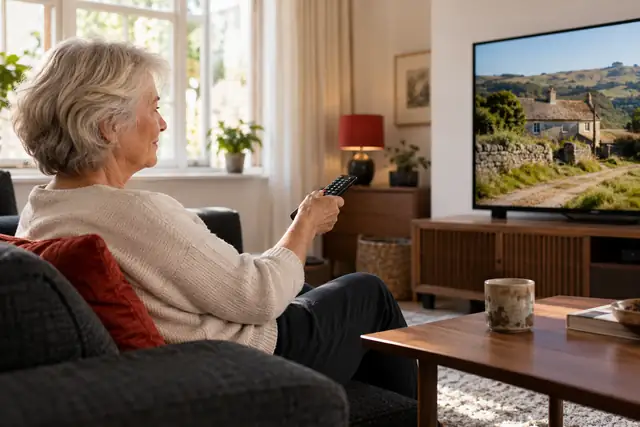
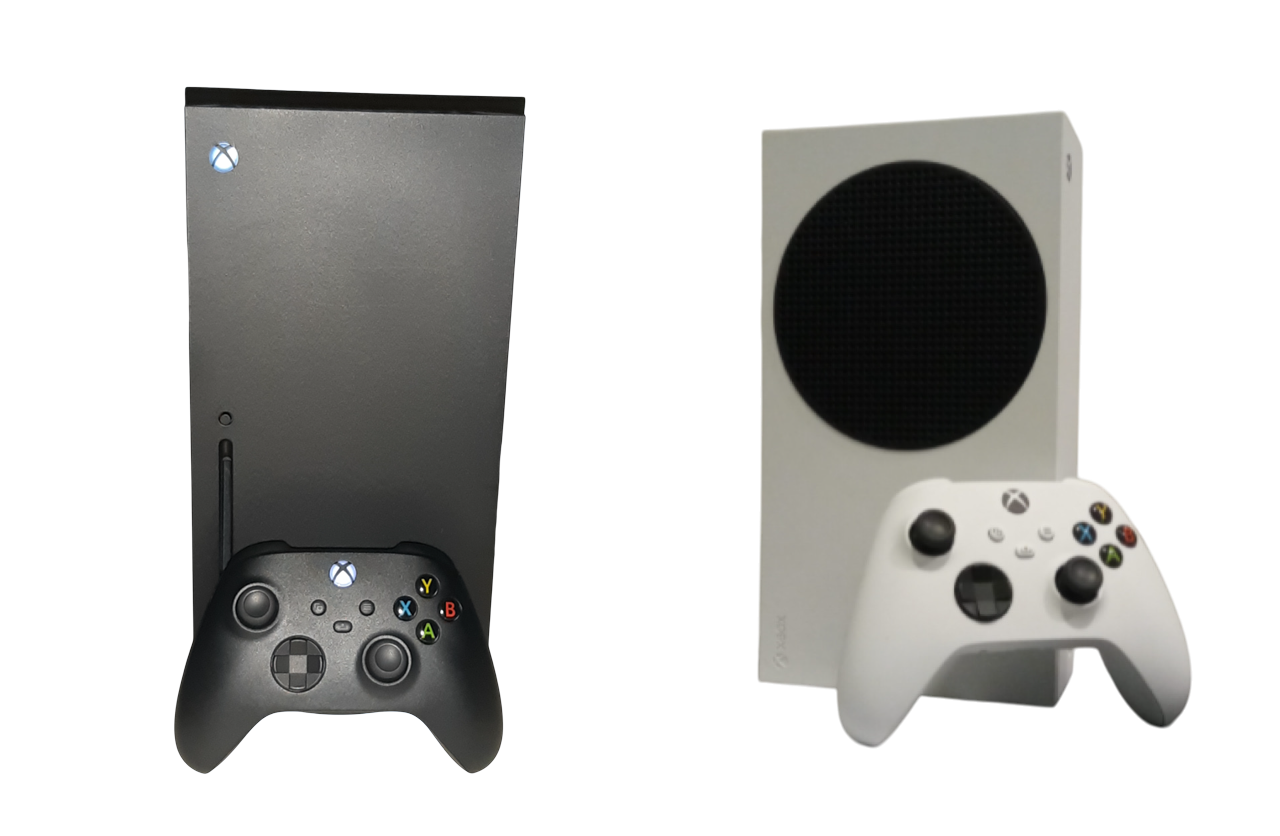
Choose the picture that matches your device. A separate guide will open with large, simple, step-by-step instructions.

Easy instructions
Real setup pictures
Support available 24/7
BEFORE YOU START

Keep Your Activation Email Open

1
Find your deviceChoose the television, stick, phone, computer or box you are using.
2
Open your KING TV emailYour username, password, server, playlist or portal details are inside it.
3
Follow one guide onlyDo not mix instructions from different devices or player applications.
OTHER IPTV PLAYER APPS

Choose The App Named In Your Setup Instructions

Use these guides only when you already selected or installed the matching application.

IPTV Smarters Pro application logo

IPTV Smarters Pro

Username, password and server login guide for supported televisions, sticks, phones and computers.

Open Smarters Guide

TiviMate IPTV player logo

TiviMate

Playlist and Xtream Codes setup for Android TV, Google TV, Shield and Fire TV.

Open TiviMate Guide

Smart IPTV application logo

Smart IPTV

MAC address and M3U playlist setup for supported televisions and Fire TV devices.

Open Smart IPTV Guide

SS IPTV application logo

SS IPTV

M3U playlist and connection-code setup for supported Smart TVs.

Open SS IPTV Guide

Smart STB application logo

Smart STB

Portal URL and virtual MAC setup for supported Samsung and LG Smart TVs.

Open Smart STB Guide

SET IPTV application logo

SET IPTV

M3U or Xtream login setup through the SET IPTV management page.

Open SET IPTV Guide

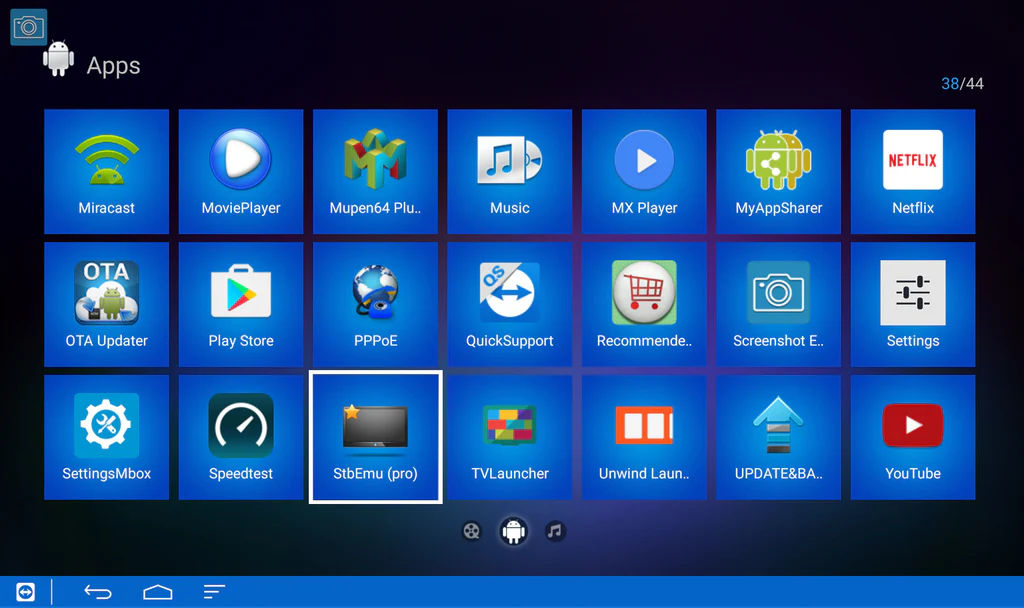
STBEmu application setup screen

STBEmu

Portal and MAC profile setup for supported Android devices using the STBEmu application.

Open STBEmu Guide
NOT SURE WHICH GUIDE TO USE?

Look At The Details In Your Activation Email

The information in the email normally tells you which setup method is required.

1

Username, Password And Server

Use an app guide such as IPTV Smarters, IPTV PRO, TiviMate, Android, Firestick, Apple or computer.

2

Portal URL And MAC Address

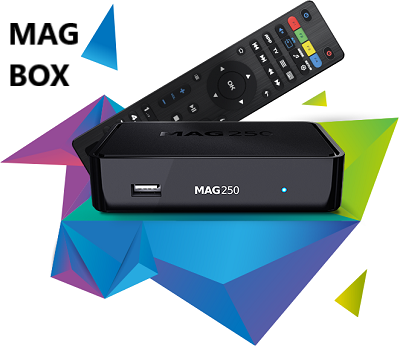
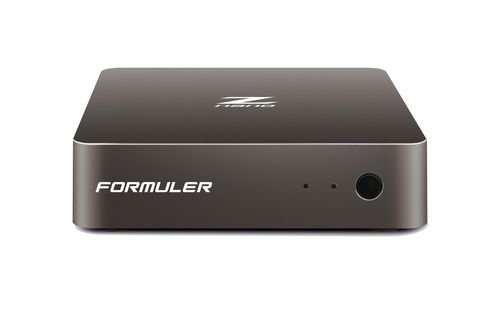
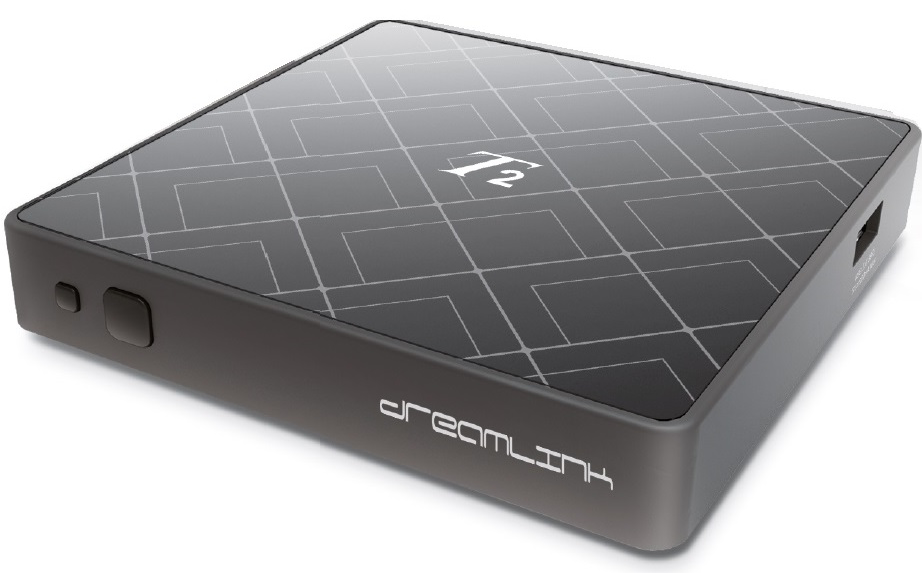
Use a portal-device guide such as MAG, Formuler, Dreamlink or a supported Smart TV portal app.

3

M3U URL Or Receiver Script

Use the player guide for an M3U URL, or the Enigma2 guide when an installation command was supplied.

SETUP QUESTIONS

Quick Answers Before You Contact Support

These checks solve the most common problems when choosing or opening a setup guide.

Which setup guide should I open?

Choose the device you are physically using. When you already installed a specific IPTV player, choose the guide with that exact app name.

What information do I need before starting?

Keep your KING TV activation email open. Depending on the device, you may need a username, password, server address, M3U URL, portal URL, MAC address or receiver command.

What should I do if the screen does not match the guide?

Stop before entering random details. Send support the device model, application name and a clear picture of the screen you see.

What if KING TV works on mobile data but not on home Wi-Fi?

This usually indicates router, ISP, DNS, parental-control or security filtering. Open the Connection Help page instead of reinstalling the app.

Will my KING TV subscription renew automatically?

No. KING TV does not charge customers automatically. Renewal invoices are paid manually when you choose to continue the service.

STILL NOT SURE?

Send Us Your Device Model And App Name

Include the exact model, the application name, your order email and a clear screenshot. Support can then send you to the correct guide without making you try unrelated instructions.