SMART IPTV SETUP GUIDE

Set Up Smart IPTV On Firestick, Android TV And Smart TV

Use this guide when you specifically want the Smart IPTV app and your KING TV activation email contains a playlist URL. Smart IPTV uses a device MAC or ID and does not include channels by itself.

Large numbered instructions
Official Smart IPTV links
Support available 24/7

SMART IPTV
Smart IPTV Smart TV app logo

Use this app only when it suits your device
For the simplest setup on Firestick and Android devices, KING TV recommends IPTV PRO first. Smart IPTV is a useful alternative for customers who prefer the MAC and playlist method.

CHOOSE YOUR DEVICE

Tap The Instructions That Match Your Screen

Start with the correct device. Do not use Firestick sideloading steps when the app is already available on your television or Android device.

1

Amazon Firestick And Fire TV

Install the official APK with Downloader, open Smart IPTV and record the MAC or ID shown on screen.

Open Fire TV Steps
2

Android TV, Google TV Or Box

Use the app store when available or install the official APK. Then continue to playlist upload.

Open Android Steps
3

Samsung Or LG Smart TV

Open the television app store and search for Smart IPTV. Availability can differ by model and region.

Open Smart TV Steps
4

Want The Easier Option?

IPTV PRO is the priority recommendation on supported Firestick and Android devices because login is usually simpler.

Open IPTV PRO Guide
BEFORE YOU START

Everything You Need Before Installation

Keep these details open on a phone, tablet or computer so you can finish without repeatedly leaving the app.

1

Your KING TV Email

You need the M3U playlist URL supplied in your activation email. Smart IPTV normally uses a playlist URL rather than Xtream Codes fields.

2

Your Device MAC Or ID

Open Smart IPTV once and carefully copy the MAC address or ID displayed by the application.

3

A Second Device

Use a phone, tablet or computer to open the official playlist upload page while the television remains on the MAC screen.

4

Stable Internet

Use Ethernet or strong 5 GHz Wi-Fi where possible. Restart the router before setup if the connection is unstable.

Smart IPTV and KING TV are separate services
Smart IPTV is only the player. The app does not include television channels. Its official activation charge is separate from your KING TV subscription.

ANDROID AND SMART TV

Install Smart IPTV Without Firestick Sideloading

Check the device app store first. Use the official APK only on compatible Android, Google TV or Fire TV devices where the store listing is unavailable.

Continue To Playlist Upload
OFFICIAL APK

Install Manually When Needed

1. Open Downloader or a browser
Use the television device, not your phone.
2. Enter apk.siptv.app
Type the official short address exactly.
3. Install and launch
Allow installation for the browser or Downloader when requested.
Open Official APK
SAMSUNG OR LG

Use The Television App Store

1. Open Apps or Content Store
The exact menu name depends on the television brand.
2. Search Smart IPTV
The app may not appear on every model or in every country.
3. Open the MAC screen
Record the MAC or ID and continue below.
Continue To Playlist Upload

Do not install a random copy from an unknown website
Use the official Smart IPTV app store listing or the official address apk.siptv.app. Avoid unofficial APK download pages.

FIRESTICK INSTALLATION

Install Smart IPTV With The Downloader App

The Amazon store does not provide Smart IPTV. Follow these screens in order and use the official Smart IPTV APK address.

1

Open Fire TV Settings

From the Fire TV home screen, open the Settings gear.

Fire TV Settings menu
2

Select My Fire TV

Some devices show Device and Software instead.

Fire TV My Fire TV menu
3

Open Developer Options

Select Developer Options. Use the green help panel below if it is hidden.

Fire TV Developer Options menu
4

Allow Downloader Installation

Open Install Unknown Apps or Apps From Unknown Sources and allow Downloader.

Fire TV Apps from Unknown Sources setting
DEVELOPER OPTIONS MISSING?

Unlock Developer Options First

Open Settings, select My Fire TV, open About, highlight the Fire TV device name and press the OK button on the remote seven times. Return to My Fire TV and Developer Options should now appear.

5

Open Find And Search

Return to the home screen, open Find and select Search.

Fire TV Find menu
6

Search For Downloader

Use the on-screen keyboard and type Downloader.

Fire TV Search screen
7

Select Downloader

Choose the orange Downloader app from the results.

Downloader app in Fire TV search results
8

Install And Open Downloader

Select Get or Download, wait for installation and open the app.

Downloader application page
9

Select The URL Field

Allow any requested permissions, dismiss the first message and select the URL box.

Downloader URL entry field
10

Enter The Official Address

Type apk.siptv.app exactly and select Go.

IPTV Smarters Pro application screen
11

Install Smart IPTV

Wait for the APK to download and select Install.

Smart IPTV Firestick installation page
12

Open Smart IPTV

Select Open. The app should display a MAC address or device ID.

Smart IPTV Firestick MAC address screen

Firestick installation complete
Keep Smart IPTV open on the MAC or ID screen and continue to the playlist upload section.

CONNECT YOUR KING TV PLAYLIST

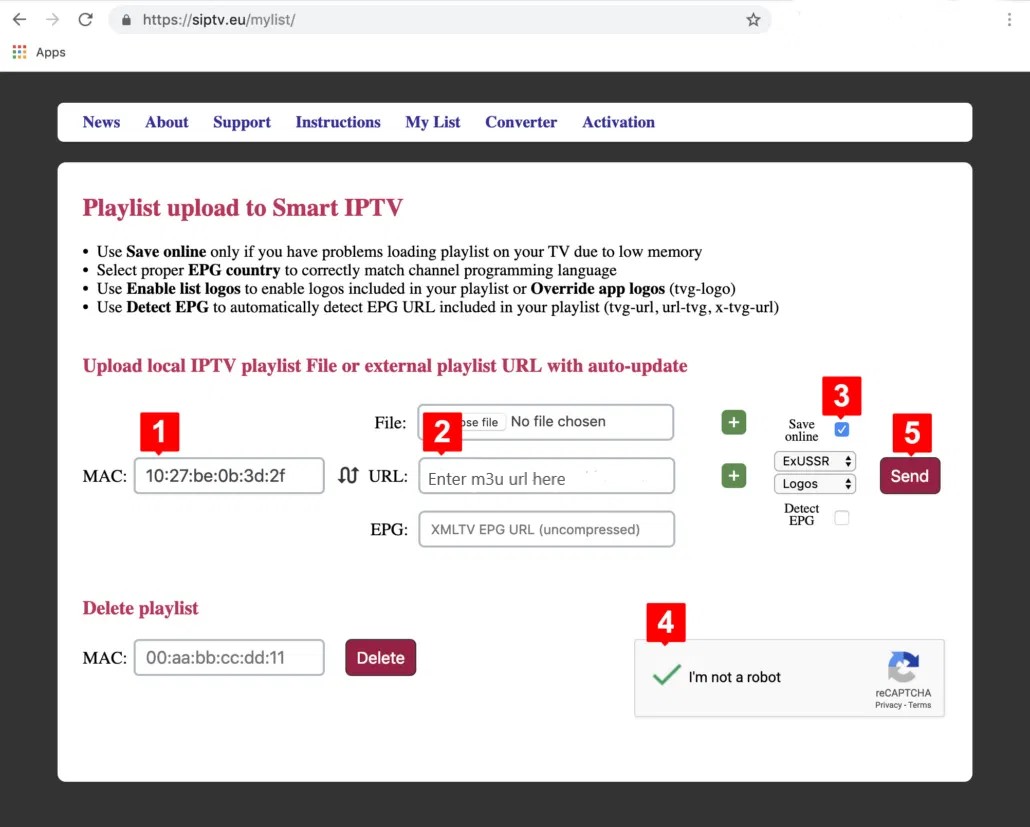
Enter The MAC Or ID And Upload Your Playlist

Use a phone, tablet or computer for this part. Leave Smart IPTV open on the television while you copy the MAC or ID.

STEP BY STEP
1. Copy the MAC or ID
Check every letter, number and separator carefully.
2. Open the official My List page
Use the button below on another device.
3. Enter the KING TV playlist URL
Paste the complete M3U URL from your activation email into the URL field.
4. Select Add Link
Wait for the success message before closing the page.
5. Restart Smart IPTV
Fully exit the app and reopen it so the playlist reloads.
Open Official Playlist Upload
Smart IPTV installation steps
1

Use Detect EPG

Enable Detect EPG when your KING TV playlist contains an electronic programme guide address.

2

Lock Your MAC Or ID

After setup, use Lock MAC/ID in the app settings to reduce the risk of the playlist being reset by another person.

3

Use Device MAC On Wi-Fi

On Android 10 or later, disable randomized MAC for the television Wi-Fi network so the app keeps the same device identity.

Playlist upload does not activate the Smart IPTV player
If the app says the MAC or ID is not activated, use the separate official activation page below. Activating the app does not add channels by itself.

THIRD-PARTY APP ACTIVATION

Activate Smart IPTV Only After Testing Your Playlist

Smart IPTV currently lists a one-time activation charge for each television or device. This payment belongs to Smart IPTV and is separate from KING TV.

1

Confirm Channels Load First

Do not pay the app activation fee to fix a broken playlist, login error or internet problem.

2

Enter The Correct MAC Or ID

Use the same identifier displayed by the Smart IPTV app on the device you want to activate.

3

Keep The Receipt

Save the Smart IPTV payment confirmation separately from your KING TV order confirmation.

USING THE APP

Open Channels, Groups, Guide And Favourites

The exact remote buttons can differ, but these are the most useful controls for everyday viewing.

CHANNELS

Press OK

Press OK while watching to open the channel list. Use the arrow buttons to move through channels.

GROUPS

Press And Hold OK

Long press OK in the channel menu to open extra tools, including groups and sorting on supported devices.

TV GUIDE

Open EPG

Use the Guide, green or menu control when supported. Reload the playlist if programme data is missing.

FAVOURITES

Add Favourite Channels

Use the extra tools or red button when available to add, edit or remove favourite channels.

USE THE CORRECT FIX

Solve The Problem Without Reinstalling Everything

Match the message or symptom below. Most setup problems come from the wrong MAC, an incomplete playlist URL or a network block.

MAC NOT FOUND

Open The App Once

Make sure Smart IPTV has been opened on the television, then re-enter the MAC or ID exactly as displayed.

MAC NOT ACTIVATED

Test Before Paying

Confirm the playlist is correct first. App activation will not repair an incorrect or inactive KING TV playlist.

NO CHANNELS

Upload The Full M3U URL

Copy the complete playlist URL from your KING TV email and restart the app after the upload succeeds.

PLAYLIST DISAPPEARS

Lock The MAC Or ID

Use Lock MAC/ID in the app settings. On Android Wi-Fi, select Use Device MAC instead of a randomized address.

BUFFERING

Restart The Device And Router

Test Ethernet or 5 GHz Wi-Fi, close background apps and open Connection Help if it works on mobile data but not home Wi-Fi.

AUDIO OR VIDEO

Try Playback Settings

On Android devices, test Audio Decoder Fix, Tunneled Video Playback or an external player when the native codec cannot play a stream.

Open Connection Help
SMART IPTV QUESTIONS

Smart IPTV Setup FAQ

Open a question below for a quick answer.

Does Smart IPTV include channels?

No. Smart IPTV is only a media player. Add the KING TV playlist URL from your activation email.

What address should I enter in Downloader?

Enter apk.siptv.app. This is the official short address listed by Smart IPTV for Android, Google TV and Fire TV installation.

Where do I upload the KING TV playlist?

Open the official Smart IPTV My List page, enter the MAC or ID shown by the app and paste the complete KING TV M3U playlist URL.

Why does the app show a different MAC after restarting?

On Android 10 or later, open the Wi-Fi privacy settings and select Use Device MAC rather than a randomized MAC address.

Is the Smart IPTV activation payment made to KING TV?

No. Smart IPTV is a separate third-party player. Its activation payment is separate from your KING TV subscription and does not provide channels.

Why does Smart IPTV work on mobile data but not home Wi-Fi?

This usually points to a router, ISP or DNS restriction rather than an app installation problem. Open KING TV Connection Help.

Should I choose Smart IPTV or IPTV PRO?

Use IPTV PRO first on supported Firestick and Android devices for the easiest setup. Choose Smart IPTV when you specifically prefer the MAC and playlist upload method or already use the app.

STILL NOT WORKING?

Send Us The Device Model, MAC Screen And Error Message

Include the exact television or Fire TV model, a photograph of the Smart IPTV MAC or ID screen and the full error message. Support can identify whether the problem is the app, playlist or connection.