Set Up KING TV In The Smart STB App
Use this guide only when your activation email contains a portal URL and KING TV support asks for the Virtual MAC shown by Smart STB.
Smart STB does not include television service. It acts as a portal player and must be configured with the details supplied for your KING TV account.
Continue when support requests the Virtual MAC and your email contains a complete portal URL.
Open IPTV Smarters or another username-login app when your email contains all three fields.
Open Smarters GuideOpen Smart IPTV, SS IPTV or SET IPTV when the app and email use an M3U playlist rather than a portal.
Open Smart TV GuideThe Virtual MAC is generated by the Smart STB app. It is not necessarily the television Wi-Fi or Ethernet MAC.
Open the television app store, search for Smart STB and install the official application.
Open the app, press OK or centre when required, then open System Settings and Device Info.
Copy the Virtual MAC exactly. Also note the Software ID when support requests it for app licensing help.
Reply to the order email or use the contact page. Include the television model and a clear photo of Device Info.
The menu wording can vary. The usual path is System Settings, Portals, Portal 1.
Press OK or the centre button while the app is loading, then select System Settings.
Enable Portal 1 when an on or off option is shown. Use one portal unless support says otherwise.
Use KING TV or another short name you will recognise.
Delete the old address and enter the complete portal from your email, including http:// or https://, port and final path.
Use the green or F2 key when shown. Otherwise press Back or Return and confirm with OK.
Select Portal 1 as the default portal, close the app completely and open it again.
Do not change the Virtual MAC or buy another app before checking these causes.
Send support a photo of Device Info so the registered Virtual MAC can be compared with the app.
Confirm the complete portal, remove spaces and restart the app and television.
The Smart STB app licence is separate from KING TV. Use the official Smart STB account or support resources for app activation.
Open Smart STB WebsiteRestart the television and router. Use Ethernet or stronger 5 GHz Wi-Fi where available.
Open the connection guide when the portal works on another network.
Open Connection HelpTell support the TV model, app version and exact menu shown. Do not guess or change advanced values.
Contact SupportOpen a question to view the answer.
It is the portal device address generated by Smart STB. Find it in System Settings and Device Info.
No. Software ID is used for Smart STB app licensing. KING TV portal registration normally uses the Virtual MAC requested by support.
Enter the complete unique portal address from your KING TV activation email. Do not use an example address.
No. Smart STB is a separate third-party application and its licence is controlled by its developer.
No. KING TV subscriptions are manually renewed. No automatic renewal charge is taken.
Include a photo of Device Info and the exact message shown by Smart STB. This allows support to compare the registered portal details quickly.
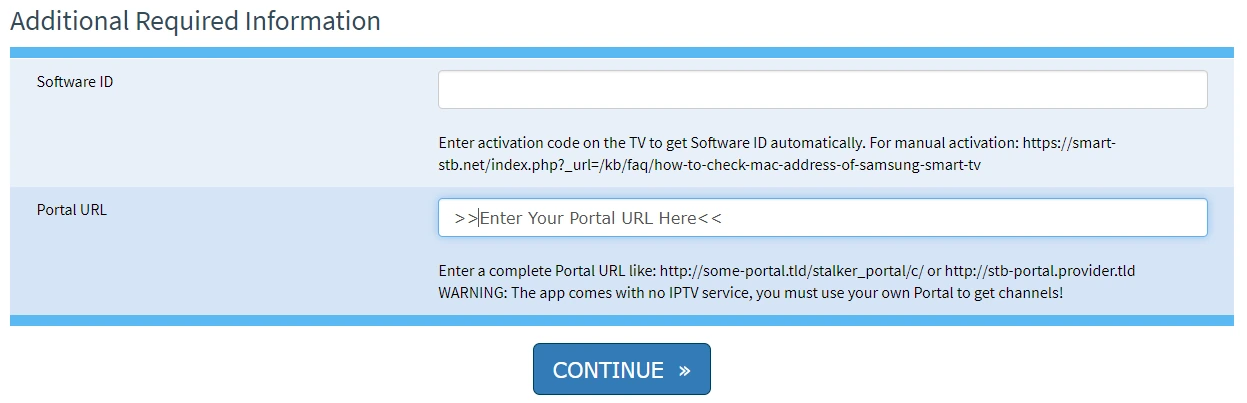
The Smart STB wording can vary slightly by television and app version. These original screenshots help you recognise the activation and portal screens.
Use this screen to locate the activation information requested by Smart STB. Do not copy example values from the picture.
Enter only the unique portal URL supplied in your KING TV activation email and keep the complete address unchanged.