ADVANCED TV PLAYER GUIDE

Set Up KING TV With TiviMate On Firestick And Android TV

Use this guide for Fire TV, Android TV, Google TV, NVIDIA Shield and compatible Android boxes. TiviMate is designed for television screens and remote controls.

Large numbered instructions
Xtream Codes setup included
Support available 24/7
TIVIMATE
TiviMate app logo

Best for television devices
For Android phones and tablets, use IPTV PRO instead because TiviMate is designed around remote control navigation.

CHOOSE YOUR DEVICE

Tap The Instructions That Match Your Device

Start with the device you are setting up. Do not use the Firestick sideloading steps on an Android TV that already has Google Play.

1

Firestick And Fire TV

Install the official APK with Downloader, then add your KING TV account.

Open Fire TV Steps
2

Android TV And Google TV

Install TiviMate IPTV Player from Google Play and continue to the login section.

Open Android TV Steps
3

NVIDIA Shield Or Android Box

Use Google Play first. Use the official APK only when the player is not listed.

Open Box Steps
4

Android Phone Or Tablet

TiviMate is not optimized for touch screens. IPTV PRO is the easier supported choice.

Open IPTV PRO Guide
BEFORE YOU START

Everything You Need Before Installation

Keep these items ready so the installation and account setup can be completed without interruption.

1

Supported TV Device

Fire TV, Android TV, Google TV, NVIDIA Shield or a compatible Android television box.

2

Activation Email

Keep the KING TV server address, username and password open on another device.

3

Stable Internet

Use Ethernet or strong 5 GHz Wi-Fi where possible, especially for 4K television devices.

4

Correct Application

Install TiviMate IPTV Player. TiviMate Companion is not the television player.

TiviMate and KING TV are separate services
TiviMate is the player only. It does not include channels. A TiviMate Premium purchase unlocks player features and is separate from your KING TV subscription.
ANDROID TV INSTALLATION

Install TiviMate On Android TV, Google TV Or Shield

Use Google Play when it is available. The official APK is the fallback for compatible television devices without the correct store listing.

APK FALLBACK

Install The Official APK

1. Open A Browser Or Downloader
Use a browser, file manager or Downloader on the television device.
2. Open The Official Address
Enter tivimate.com/apk exactly.
3. Approve And Install
Allow installation from the current source, open the downloaded APK and press Install.
Open Official APK Page
Installed successfully?
Skip to the account setup section and enter the values from your KING TV activation email.
Continue To Login Setup
FIRESTICK INSTALLATION

Install TiviMate With The Downloader App

Follow the screenshots in order. The names of some Fire TV menus can differ slightly between software versions.

1
Open Fire TV Settings

From the Fire TV home screen, move to Settings.

Fire TV Settings menu
2
Select My Fire TV

Open My Fire TV from the Settings screen.

Fire TV My Fire TV menu
3
Open Developer Options

Select Developer Options. Use the help panel below if the option is hidden.

Fire TV Developer Options menu
4
Allow Downloader Installation

Open Install Unknown Apps or Apps From Unknown Sources and allow Downloader.

Fire TV Apps from Unknown Sources setting
DEVELOPER OPTIONS NOT VISIBLE?

Unlock Developer Options First

Open Settings, select My Fire TV, open About, highlight the Fire TV device name and press the OK button on the remote seven times. Return to My Fire TV and Developer Options should appear.

5
Open Find And Search

Return to the home screen, open Find and select Search.

Fire TV Find menu
6
Search For Downloader

Use the on-screen keyboard and type Downloader.

Fire TV Search screen
7
Select Downloader

Choose Downloader from the search suggestions.

Downloader app in Fire TV search results
8
Install And Open Downloader

Select the Downloader app, press Get or Download, then open it.

Downloader application page
9
Select The URL Box

Allow any requested permissions, then select the URL field on the Downloader home screen.

Downloader URL entry field
10
Enter The Official Download

Enter Downloader code 272483, or type tivimate.com/apk, then select Go.

DOWNLOADER CODE
272483
Alternative URL: tivimate.com/apk
11
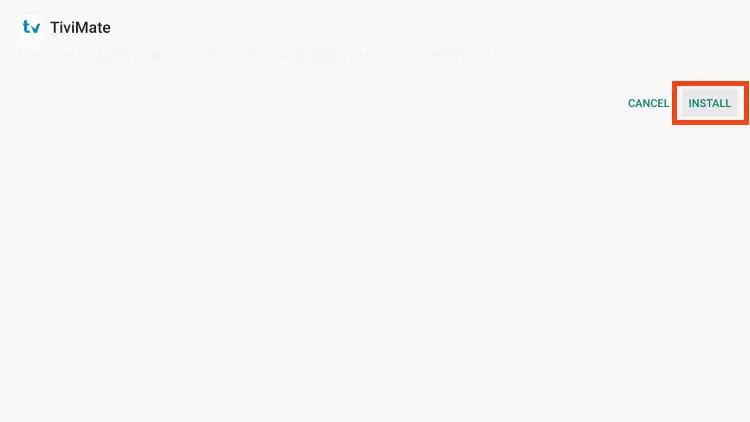
Install TiviMate

Wait for the APK to download and select Install.

Install TiviMate IPTV Player on Firestick
12
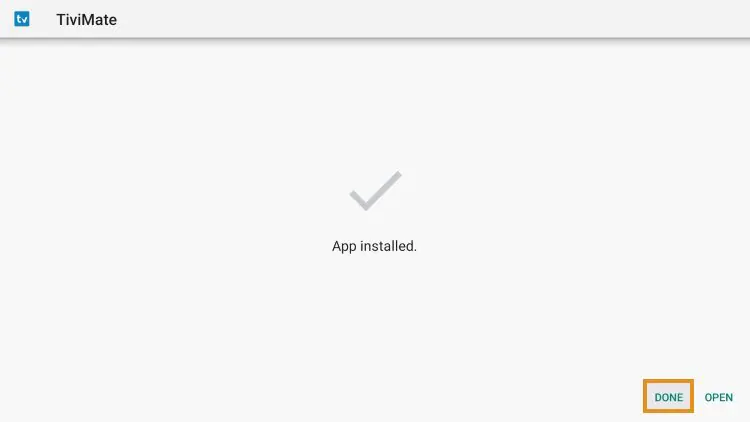
Select Done

When installation finishes, choose Done to return to Downloader.

Select Done after installing TiviMate
13
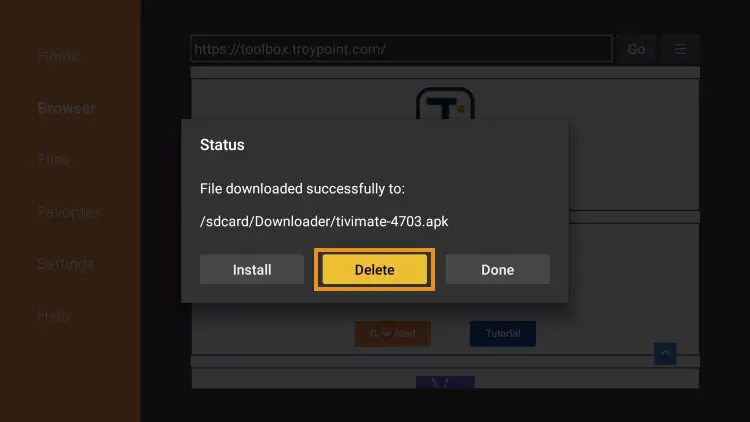
Delete The APK File

Select Delete and confirm again to free storage space on the Fire TV device.

Delete the TiviMate APK after installation
14
Open Your Apps And Channels

Return to the Fire TV home screen, choose See All and locate TiviMate.

Fire TV applications menu
15
Move TiviMate To The Front

Highlight TiviMate, press the menu button with three horizontal lines and choose Move To Front.

Installation complete
Open TiviMate and continue to the account setup below.
Continue To Login Setup
USING TIVIMATE

Set Up The Guide, Groups And Favorites

The free player can be used for basic viewing. Some advanced controls require TiviMate Premium, which is purchased separately from the app provider.

REMOTE CONTROL

Navigate The TV Guide

Press OK to open a channel. Use Back to return to groups or the guide. Use the direction buttons to move through channels and programmes.

GROUPS

Hide Unwanted Categories

Open the guide menu, choose Group Options and Manage Groups, then turn off groups you do not need.

FAVORITES

Create A Short Channel List

Press and hold OK on a channel and choose Add To Favorites. Repeat the action to remove it.

PROGRAMME GUIDE

Keep The EPG Updated

Open Settings, EPG and enable regular guide updates. Allow extra time for the first full download.

PARENTAL CONTROL

Protect Restricted Areas

Use the parental-control settings to create a PIN for playlists, groups, the guide or playback where supported.

SUBTITLES

Enable Closed Captions

While a channel is playing, hold OK, open the CC option and choose an available subtitle track. Availability depends on the channel.

PREMIUM FEATURES

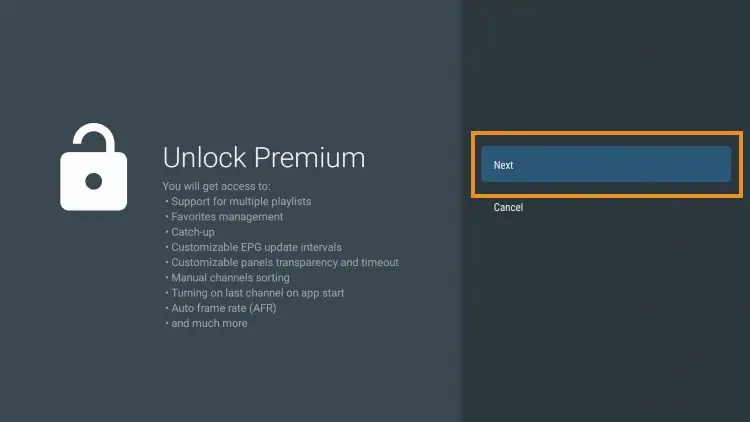
Premium Unlocks Extra Player Controls

Premium can add features such as multiple playlists, favorites management, catch-up controls, advanced guide updates, manual sorting, multiview and additional interface settings. It does not include a KING TV subscription or any channels.

TiviMate Premium feature unlock message
QUICK FIXES

Use The Correct Fix For The Problem

Check the matching issue before deleting the player or changing your KING TV login information.

WRONG APP

TiviMate Companion Opens

Companion is not the television player. Install TiviMate IPTV Player on the TV device.

INSTALLATION

APK Will Not Install

Allow installation for Downloader, confirm enough storage is available and download the official APK again.

LOGIN

Authorization Failed

Re-enter the server address, username and password exactly. Remove spaces and confirm the service account is active.

PROGRAMME GUIDE

EPG Is Empty

Wait for playlist processing, open Settings and update the EPG. Not every channel provides programme information.

PLAYBACK

Channels Buffer Or Freeze

Restart the device and router, test another channel and use Ethernet or strong 5 GHz Wi-Fi where possible.

HOME NETWORK

Works On Mobile Data Only

This usually points to ISP security, DNS, router filtering or VPN protection rather than a TiviMate login problem.

Open Connection Help
TIVIMATE QUESTIONS

TiviMate Setup FAQ

Which devices should use TiviMate?

TiviMate is designed for Android television devices and remote control navigation, including compatible Fire TV, Android TV, Google TV, NVIDIA Shield and Android boxes. Use IPTV PRO for phones and tablets.

Is TiviMate Companion the player?

No. TiviMate Companion is used for Premium activation and device management. Install TiviMate IPTV Player on the television device.

Should I choose Xtream Codes, M3U or Stalker Portal?

Choose Xtream Codes when your activation email contains a server address, username and password. Use M3U or Stalker Portal only when the email specifically provides that format.

Does TiviMate Premium include KING TV channels?

No. TiviMate Premium unlocks application features only. Your KING TV subscription and activation details are separate.

Why is the programme guide empty?

Wait for the first playlist and EPG download, then update the EPG from Settings. Not every channel provides programme information.

Does KING TV renew automatically?

No. KING TV does not charge customers automatically. Renewal invoices are paid manually when the customer chooses to continue.


STILL NEED HELP?

Send Us Your Device Model And Error Screen

Include the exact device model, the screen where you became stuck and a clear screenshot. Support can identify the correct fix without making you repeat the complete setup.